

应用版本v1.0.995038376 安卓版
应用类别生活服务
应用大小2.9M
更新时间2026-10-20 18:53
应用星级
运行环境Android
官方网址https://deepmind.google/models/gemini/
应用厂商Google LLC
重要提示:资源已亲测,真实可用。由于包体较大,推荐使用网盘下载,速度更快且可永久保存及分享。
本地下载易中断,网盘转存下载80M/s,且最关键的是汇聚了全部所需版本免费自取。
如果无法进入是需要科学上网才能使用的!可以使用ourplay:点击下载
此内容由AI根据文章内容自动生成,并已由人工审核
《gemini官方下载》是谷歌软件公司旗下的AI大模型生成软件,拥有全球最先进的人工智能算法,深入用户日常学习生活中的多项领域,整体表现远超上一代模型,尤其在逻辑、推理和计算方面表现惊人,适合国内外不同用户群体使用,需要的欢迎来本网站安装体验。
美东时间2026年7月26日,Alphabet二季度财报电话会议上,谷歌CEO桑达尔・皮查伊对外证实行业关键消息:下一代旗舰大模型Gemini4已经进入训练阶段。

Alphabet 最新财报电话会上,分析师把同一个问题反复递到桑达尔·皮查伊面前:Gemini还能不能留在大模型前沿?
皮查伊的回答没有绕开压力。他承认,编码和智能体编程是谷歌需要继续改进的领域;随后首次给出更明确的进展——Google 正在训练Gemini 4,而且会用“更大的基础模型”冲击下一阶段的前沿水平。
“我们正在训练 Gemini 4,并且对此非常有雄心。”皮查伊说,他已经看到内部进展,并相信产品对外开放时会让用户满意。

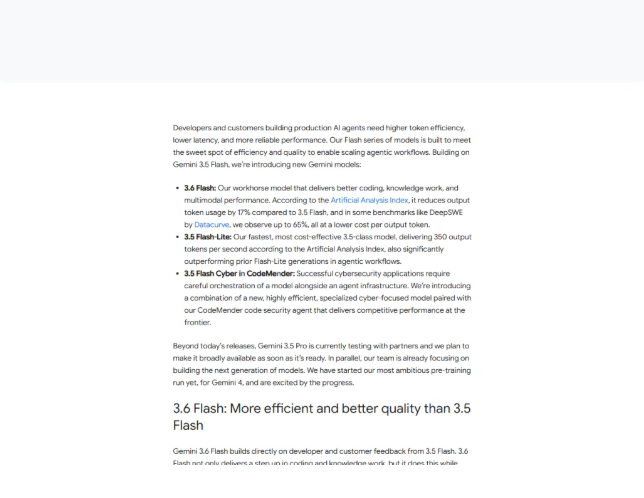
这不是电话会上的临场预告。7月21日,Google在发布Gemini 3.6 Flash、3.5 Flash-Lite和3.5 Flash Cyber时,已经在官方博客末尾埋下了那句最受关注的话:团队已经启动Gemini 4,这是公司“迄今最具雄心的预训练”。
这句话出现的背景颇为微妙。原计划在6月亮相的Gemini 3.5 Pro仍在合作伙伴中测试,Google 只表示“准备好后尽快广泛开放”。同一时期,OpenAI和Anthropic持续刷新旗舰模型,外界对 Google 顶级模型进度的追问越来越直接。
Google 先交出的,是面向大规模智能体任务的Flash系列:3.6 Flash的输出Token使用量较3.5 Flash减少17%,API价格降至每百万输入Token 1.5美元、输出Token7.5美元;3.5 Flash-Lite则主打每秒350个输出Token和更低成本。


这些更新解决的是眼前的速度、价格和部署效率,Gemini 4则承担了另一项任务:让Google在下一轮旗舰模型竞争中重新拿出一个足够大的技术跃迁。
皮查伊在电话会上形容,大模型前沿是一个“极其动态、快速向前”的空间。他没有回避短板,直接点出编码和智能体编程仍需加强。TechCrunch梳理的发布节奏更能说明这种压力:在3.5 Pro等待上线的几个月里,OpenAI已推出GPT-5.5并开始部署GPT-5.6,Anthropic则连续发布Claude Opus 4.8、Claude Sonnet 5并扩大Fable 5的开放范围。旗舰模型多拖一个月,榜单、开发者选择和企业采购清单都可能再变一轮。
Google此时公开“更大的基础模型”,也等于提前说明Gemini 4不会只是Flash系列的小步升级。预训练结束后还要经历后训练、安全评估、产品适配和推理服务准备。从7月已经启动训练推算,年底确实存在发布可能,但任何一个环节延长,都可能把公开时间推到下一阶段。
9to5Google根据Google过去的大版本节奏判断,Gemini 4可能在11月或12月推出。Hacker News的讨论里,用户kingstnap也把官方公告中的Gemini 4段落称为“真正的亮点”,并希望模型能在年底到来,同时更新知识截止时间。
另一名用户Gecko4072的解读更尖锐:越早强调Gemini 4,越像是在降低外界对3.5 Pro的期待。财报电话会后,用户spwa4则把分析师的连续追问概括成同一个问题——Google什么时候重新拿出顶级前沿模型?
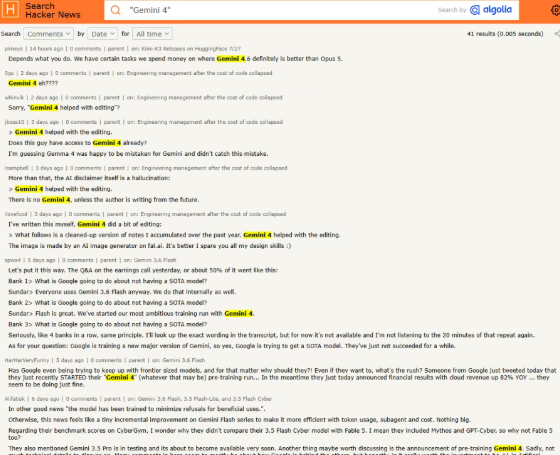
这组讨论没有形成整齐划一的乐观情绪。用户 HarHarVeryFunny注意到Google Cloud仍以82%的同比速度增长,认为Google即使暂时没有公认的最强文本模型,商业表现依然强劲;Alifatisk则指出,官方尚未给出Gemini 4的技术细节,现阶段能讨论的仍然有限。还有人追问:Google是否为了等待新一代TPU,才把一次更大规模的预训练放到现在。
这种分歧恰好构成Gemini 4目前的真实位置。它已经从传闻变成正式项目,却还没有模型卡、API名称、价格和公开测评。用户能看到的是训练启动和算力优先级,看不到的是最终能力曲线。
截至7月28日,Google 没有公布 Gemini 4 的发布日期、参数规模、上下文长度或具体测试成绩。“年底”仍是媒体依据历代发布时间作出的推测。不过,预训练已经启动、皮查伊公开谈到内部进展、TPU资源向前沿研发倾斜,这三个动作让11月至12月成为目前最受关注的发布窗口。
Alphabet第二季度营收达到1198亿美元,同比增长24%;Google Cloud营收247.7亿美元,同比增长82%。皮查伊还披露,Gemini模型每分钟处理220亿个 API Token,Gemini应用月活跃用户达到9.5亿,懦伞恫聘弧�100强企业正在使用Gemini Enterprise。

电话会被问及 TPU 如何在内部研发和云客户之间分配时,皮查伊把“竞争前沿、推进AGI开发”列为首要任务。这意味着Gemini 4的大规模训练会直接进入Google的算力资源优先级,而不是一条停留在产品路线图上的远期计划。
这套资源分配还要同时照顾已经上线的庞大业务:搜索中的AI功能、Gemini应用、企业智能体平台、开发者API都在持续消耗推理算力。Google一边要把TPU卖给Cloud客户,一边要留下足够资源训练和部署下一代模型。皮查伊在电话会上主动把内部前沿研发排在首位,给Gemini 4的训练状态增加了比普通产品预告更重的分量。
接下来先接受市场检验的仍是Gemini 3.5 Pro。它正在合作伙伴中测试,Google尚未给出公开上线日期;与此同时,3.xFlash模型还会保持接近月度的更新节奏。若Gemini 4延续Google过去的大版本周期,11月或12月将是第一个关键时间点。真正的发布日期,仍要等Google把“正在训练”改成正式发布邀请。
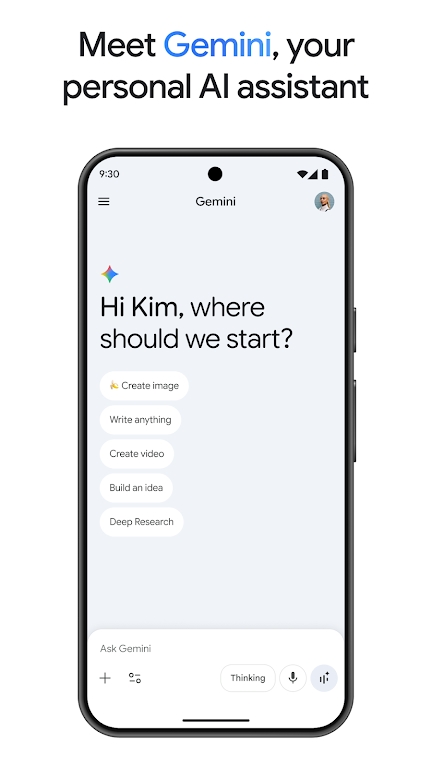
借助Google旗下的AI助理Gemini,获取创意灵感,提升工作效率,迄今为止最智能的模型。拥有最先进的推理功能,可帮助您学习、构建和规划任何事物。
1)打开Edge浏览器,点击右上角菜单(三个点)
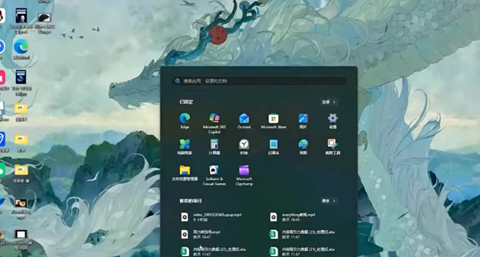
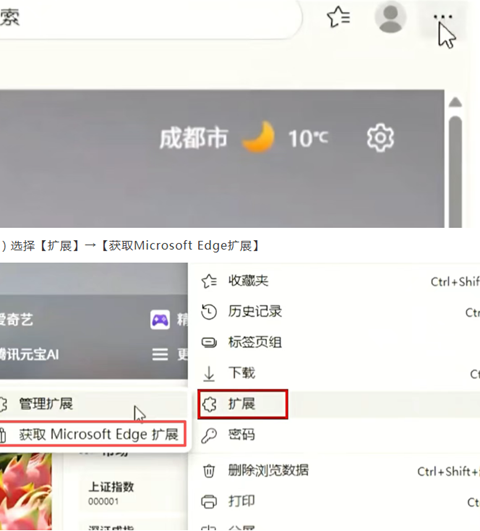
3)搜索框输入【sider】并回车

4)在结果中找到【Sider:ChatGPT侧边栏】(带★★★★评分)
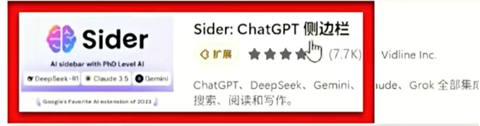
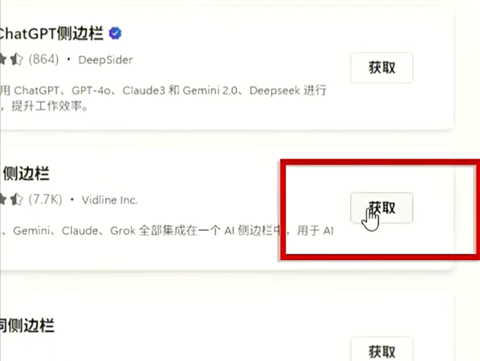
5)点击【获取】→【添加扩展】
1)安装成功后点击扩展栏的Sider图标
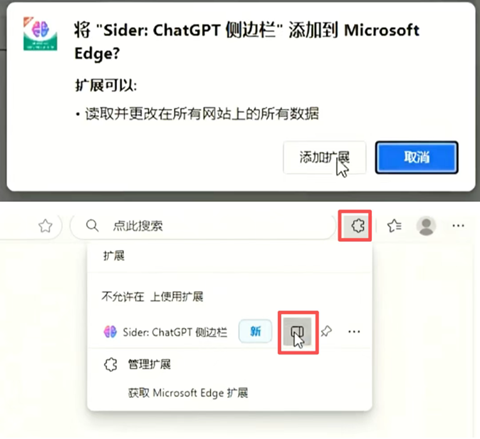
2)在侧边栏界面下滑找到【切换模型】按钮
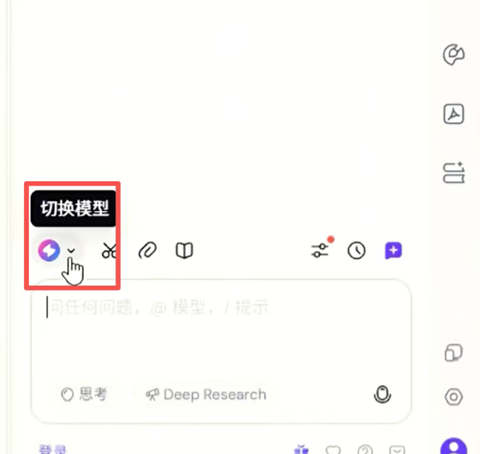
3)从模型列表选择【Gemini 3 Pro】
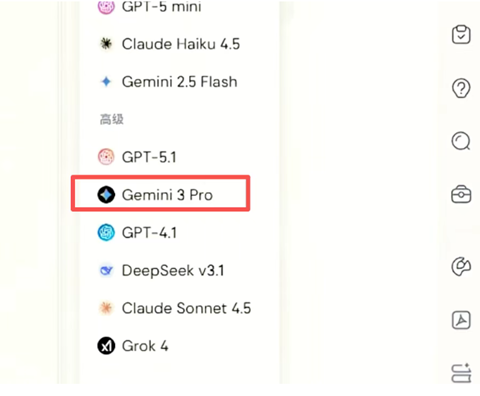
4)即可开始免费使用该模型进行AI问答
需使用Edge浏览器中国版
首次安装后需手动启用侧边栏
模型切换功能位于侧边栏底部

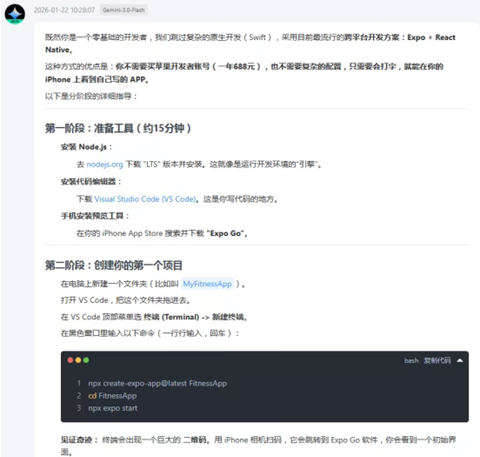
既然你是一个零基础的开发者,我们跳过复杂的原生开发(Swift),采用目前最流行的**跨平台开发方案:Expo +React Native**。
这种方式的优点是:**你不需要买苹果开发者账号(一年688元),也不需要复杂的配置,只需要会打字,就能在你的iPhone上看到自己写的APP。**
以下是分阶段的详细指导:
1. **安装Node.js**:
* 去[nodejs.org](https://nodejs.org/)下载"LTS"版本并安装。这就像是运行开发环境的“引擎”。
2. **安装代码编辑器**:
* 下载[Visual Studio Code (VS Code)](https://code.visualstudio.com/)。这是你写代码的地方。
3. **手机安装预览工具**:
* 在你的iPhone App Store搜索并下载**"Expo Go"**。
---
1.在电脑上新建一个文件夹(比如叫`MyFitnessApp`)。
2.打开VS Code,把这个文件夹拖进去。
3.在VS Code顶部菜单选**终端(Terminal) ->新建终端**。
4.在黑色窗口里输入以下命令(一行行输入,回车):
```bash
npx create-expo-app@latest FitnessApp
cd FitnessApp;
npx expo start;
```
5. **见证奇迹:**终端会出现一个巨大的**二维码**。用iPhone相机扫码,它会跳转到Expo Go软件,你会看到一个初始界面。
1.在VS Code左侧找到`App.js`或`index.js`。
2.把里面的内容全部删掉,粘贴我为你准备的**简化版React Native代码**(见下方)。
3. **安装必要的插件**:在终端输入:
```bash
npx expo install lucide-react-native react-native-reanimated react-native-svg
```
####粘贴这段代码到App.js:
*(这是专门为手机优化的版本)*
```jsx
import React, { useState, useEffect } from 'react';
import { StyleSheet, Text, View, TouchableOpacity, Dimensions, SafeAreaView } from 'react-native';
import { Dumbbell, Camera, Play, CheckCircle } from 'lucide-react-native';
import Animated, { useSharedValue, useAnimatedStyle, withRepeat, withTiming, withSequence } from 'react-native-reanimated';
const { width } = Dimensions.get('window');
export default function App() {
const [isStarted, setIsStarted] = useState(false);
const [isPresent, setIsPresent] = useState(true);
const [timer, setTimer] = useState(0);
//动画逻辑
const animalY = useSharedValue(0);
const animalScale = useSharedValue(1);
useEffect(() => {
let interval;
if (isStarted && isPresent) {
//模拟健身跳动动画
animalY.value = withRepeat(withTiming(-20, { duration: 400 }), -1, true);
animalScale.value = withRepeat(withTiming(1.1, { duration: 400 }), -1, true);
interval = setInterval(() => setTimer(t => t + 1), 1000);
} else {
animalY.value = withTiming(0);
animalScale.value = withTiming(1);
clearInterval(interval);
}
return () => clearInterval(interval);
}, [isStarted, isPresent]);
const animatedStyle = useAnimatedStyle(() => ({
transform: [{ translateY: animalY.value }, { scale: animalScale.value }],
}));
return (
<SafeAreaView style={styles.container}>
{/*状态栏*/}
<View style={styles.header}>
<View style={[styles.aiTag, { backgroundColor: isPresent ? '#10b981' : '#ef4444' }]}>
<Camera color="white" size={16} />
<Text style={styles.aiText}>{isPresent ? "AI:专注中" : "AI:离开"}</Text>
</View>
<Text style={styles.timerText}>{Math.floor(timer/60)}:{(timer%60).toString().padStart(2,'0')}</Text>
</View>
{/*健身舞台*/}
<View style={styles.stage}>
<Animated.Text style={[styles.animal, animatedStyle]}>
{isPresent ? "��" : "��"}
</Animated.Text>
<View style={styles.shadow} />
<Text style={styles.actionText}>
{isStarted ? (isPresent ? "正在疯狂撸铁..." : "主人跑了,我先睡会") : "准备好开始了吗?"}
</Text>
</View>
{/*控制区*/}
<View style={styles.controls}>
{!isStarted ? (
<TouchableOpacity style={styles.startBtn} onPress={() => setIsStarted(true)}>
<Play color="white" fill="white" />
<Text style={styles.btnText}>开始专注</Text>
</TouchableOpacity>
) : (
<View style={{ flexDirection: 'row', gap: 10 }}>
<TouchableOpacity style={styles.simBtn} onPress={() => setIsPresent(!isPresent)}>
<Text style={styles.simText}>{isPresent ? "模拟离开" : "模拟回来"}</Text>
</TouchableOpacity>
<TouchableOpacity style={styles.endBtn} onPress={() => {setIsStarted(false); setTimer(0)}}>
<CheckCircle color="#10b981" />
<Text style={[styles.btnText, {color: '#10b981'}]}>完成</Text>
</TouchableOpacity>
</View>
)}
</View>
</SafeAreaView>
);
}
const styles = StyleSheet.create({
container: { flex: 1, backgroundColor: '#0f172a', alignItems: 'center' },
header: { width: '90%', flexDirection: 'row', justifyContent: 'space-between', marginTop: 20 },
aiTag: { flexDirection: 'row', alignItems: 'center', paddingHorizontal: 12, paddingVertical: 6, borderRadius: 20, gap: 6 },
aiText: { color: 'white', fontSize: 12, fontWeight: 'bold' },
timerText: { color: '#10b981', fontSize: 32, fontWeight: '900' },
stage: { width: width * 0.85, aspectRatio: 1, backgroundColor: '#1e293b', borderRadius: 40, marginTop: 40, justifyContent: 'center', alignItems: 'center', borderWidth: 4, borderColor: '#334155' },
animal: { fontSize: 100 },
shadow: { width: 80, height: 10, backgroundColor: 'rgba(0,0,0,0.3)', borderRadius: 20, marginTop: 10 },
actionText: { color: '#94a3b8', marginTop: 30, fontSize: 18, fontWeight: 'bold' },
controls: { width: '90%', marginTop: 'auto', marginBottom: 40 },
startBtn: { backgroundColor: '#10b981', flexDirection: 'row', height: 60, borderRadius: 20, justifyContent: 'center', alignItems: 'center', gap: 10 },
endBtn: { flex: 1, backgroundColor: 'white', flexDirection: 'row', height: 60, borderRadius: 20, justifyContent: 'center', alignItems: 'center', gap: 10 },
simBtn: { flex: 1, backgroundColor: '#334155', height: 60, borderRadius: 20, justifyContent: 'center', alignItems: 'center' },
btnText: { color: 'white', fontSize: 18, fontWeight: 'bold' },
simText: { color: '#cbd5e1', fontSize: 16 }
});
```
作为零基础,直接写AI算法很难。但你可以分两步走:
1. **第一步(当前阶段)**:使用上面的“模拟按钮”来测试逻辑。
2. **第二步(进阶)**:集成**TensorFlow.js**。
* 你需要学习如何调用手机摄像头。
* 使用一个叫`posenet`的预训练模型。它会告诉你画面里有几个人。
* 如果`personCount > 0`,就设置`isPresent(true)`。
当你对代码满意后,你可以:
1. **永久预览**:只要你的电脑开着,Expo Go就可以一直运行。
2. **打包安装**:
* 你需要注册一个苹果开发者账号($99/年)。
* 在终端运行`eas build -p ios`。
* Expo的服务器会帮你云端打包出一个`.ipa`文件。
* 通过苹果官方的**TestFlight**工具安装到手机上。
###给你的建议:
* **不要怕报错**:代码里哪怕少了一个逗号都会报错。看终端里的红字,通常它会告诉你哪一行出错了。
* **多用AI**:你可以把报错信息直接丢给ChatGPT,问它“为什么我的Expo项目报错了?”
* **先跑通,再美化**:先让猫动起来,再去研究怎么换成变色龙。
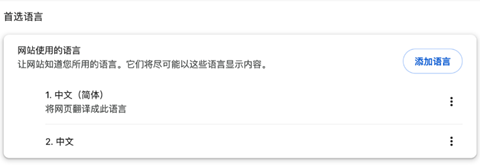
如果不习惯英文界面,可以在Chrome浏览器右上角点击「三个点」图标->Settings(设置)->左侧Languages(语言),将首选语言设为“简体中文”。这样Gemini的界面也会自动变成中文,非常方便。
Gemini 3是谷歌Gemini盗腥斯ぶ悄苣P偷牡谌姹荆隚emini是版本迭代关系。具体来说:
Gemini是谷歌推出的旗舰人工智能模型系列,旨在实现原生多模态处理(文本、图像、音频、视频等)和深度推理能力,其名称灵感源自希腊罗马神话中的双子座,象征团队协同与技术融合。
Gemini 3是该系列的最新版本(截至2025年11月发布),在推理能力、多模态理解、长上下文处理和智能体协作等方面相比前代有显著提升,例如引入“Deep Think”深度推理架构、支持100万token的上下文窗口,以及更强的代码生成和任务执行能力。
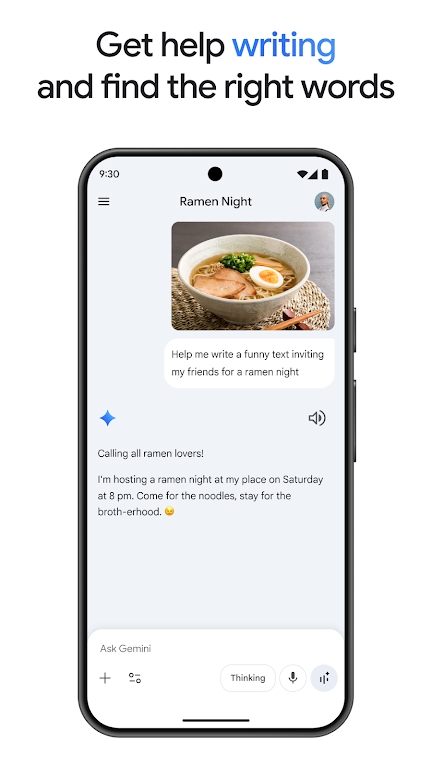
通过Gemini,你可以在手机上直接使用Google的一系列强大 AI 模型,畅享以下功能和体验:
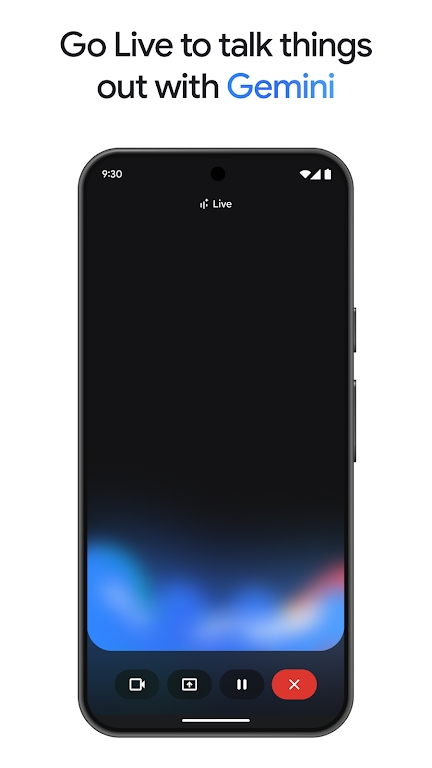
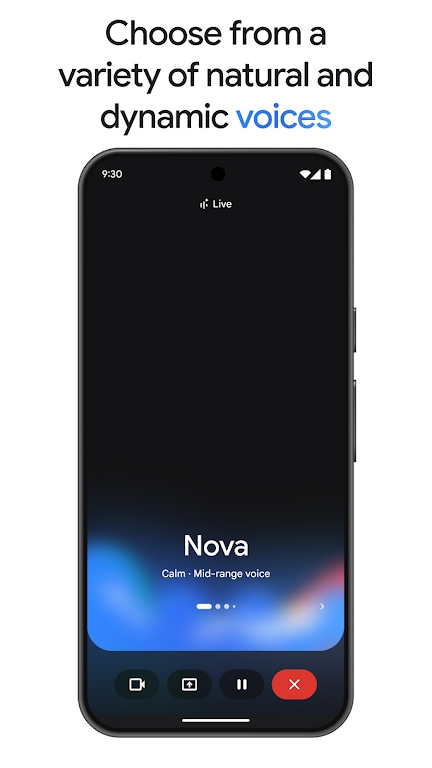
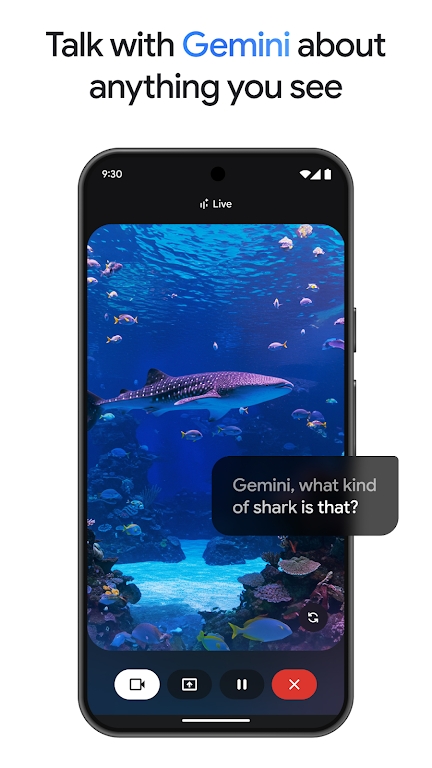
- 与Gemini 实时语音对话:开展头脑风暴、解析复杂问题,以及为重要时刻排练。在Gemini Live对话中共享摄像头或屏幕画面,与Gemini聊聊你眼前所见。只需在Gemini应用中点按“Gemini Live”按钮即可
- 使用画布功能,将你的想法变为现实。从提示到原型,轻松生成应用、游戏、网页、信息图、音频概览等。
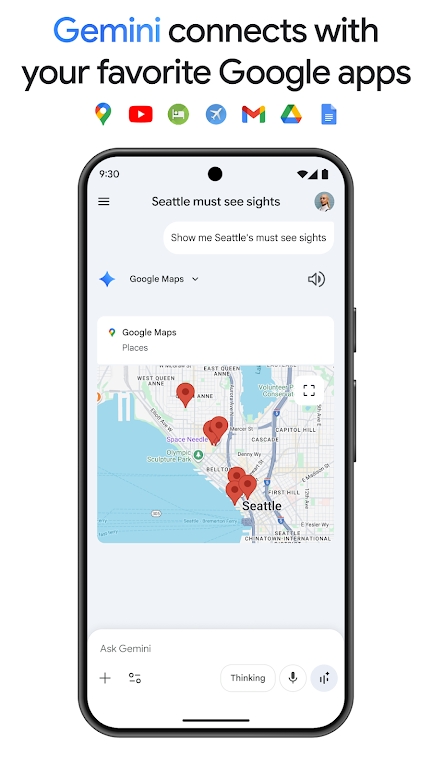
- 关联你喜欢的Google应用,例如Google搜索、YouTube、Google地图、Gmail等
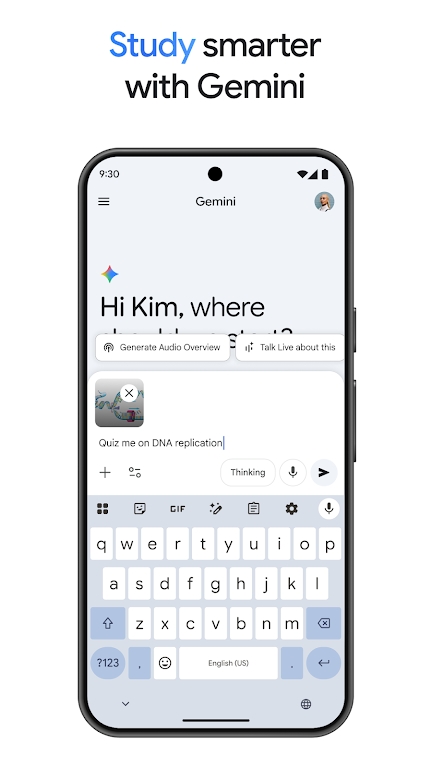
- 借助测验和抽认卡制作、互动式图示与实例,以更高效的方式学习知识,轻松探索任何主题
- 将任意文件转化成播客,随时随地收听
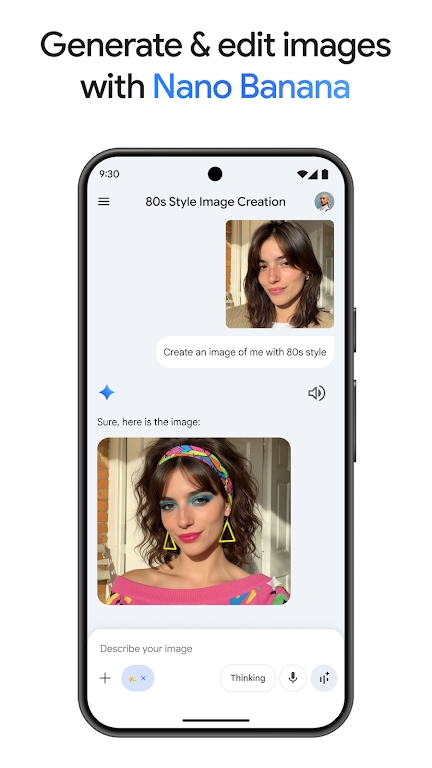
- 只需简短描述,即可生成和编辑效果惊艳的图片
- 更快更好地规划行程
- 获取内容摘要、深度解析及来源链接,一站轻松搞定
- 轻松构思全新点子,或是完善已有创意
试用NanoBanana:基于Gemini2.5Flash构建的先进图片生成和修改模型升级到Pro方案,让你的Gemini应用体验全面跃升,轻松处理复杂任务和项目。
获享领先业界的100万token上下文窗口,能够从容处理多达1,500页文本或3万行代码。
此外,你还可以更随心地使用Google最强大的模型2.5Pro,畅享由2.5Pro驱动的DeepResearch,以及Veo3.1Fast视频生成功能
Google AI Pro版Gemini附带GoogleAIPro的多项专属订阅福利。
作为Google AI Pro订阅的一部分,Gemini应用将继续面向符合条件的GoogleWorkspace商务版和教育版客户提供。
 第 698 楼江苏无锡 拾光者
 2026/10/24 17:02:59
 第 697 楼江苏无锡 海风轻拂
 2026/10/24 17:02:59
 第 696 楼江苏无锡 梦里水乡2026/10/24 17:02:58
 第 695 楼浙江温州 阳光明媚2026/10/24 17:02:57第 690 楼江苏无锡 星光点点2026/10/22 17:04:13第 689 楼江苏无锡 森林小鹿2026/10/22 17:04:12第 688 楼江苏无锡 晚风轻叙2026/10/22 17:04:12第 687 楼江苏无锡 悠然自得2026/10/22 17:04:11第 686 楼江苏无锡 春雨绵绵2026/10/21 17:03:46第 685 楼江苏无锡 夏夜虫鸣2026/10/21 17:03:45
微思应用商店手表版apk下载v3.7.2 官方最新版
生活服务 / 7.9M / 2026-10-22
grok4.2安卓版免费下载v1.2.48-release.00 最新中文版
生活服务 / 48.0M / 2026-10-23
大疆虚拟飞行模拟器下载(DJI Virtual Flight)v1.17.4 安卓版
生活服务 / 1.85G / 2026-10-22
沙发管家HD车载版本下载最新版v4.9.89 安卓版
生活服务 / 12.2M / 2026-10-15
灵动岛pro最新版2026下载v6.60 安卓官方版
 生活服务 / 74.4M / 2026-10-19
JoyAI手机版下载v2.1.14 最新版本
生活服务 / 200.1M / 2026-10-23
椰子接码手机版下载(yezi)v1.0.1 最新版
生活服务 / 23.9M / 2026-08-27
中国移动云考场手机端(云考AI)v2.0.6最新版
 生活服务 / 95.0M / 2024-03-11
水月雨调音软件app下载(MOONDROP)v2.24.1c-260728ai 安卓版
生活服务 / 105.4M / 2026-10-07
our teacher电子宠物app官方版免费下载v2026.10.1 最新版
生活服务 / 67.8M / 2026-10-16





 Windows


























选择头像: